The result
We measured the same Elementor page in three states, five runs each on mobile and on desktop. The table shows the median.
| Elementor default (Google) | Load Google Fonts locally | Google Fonts off | |
|---|---|---|---|
| Load time mobile (LCP) | 4.51 s | 3.90 s | 3.43 s |
| First paint mobile (FCP) | 2.09 s | 1.40 s | 1.36 s |
| Load time desktop (LCP) | 1.26 s | 0.95 s | 0.83 s |
| Lighthouse score mobile | 82 | 88 | 91 |
| Requests to outside servers | 9 (Google) | 0 | 0 |
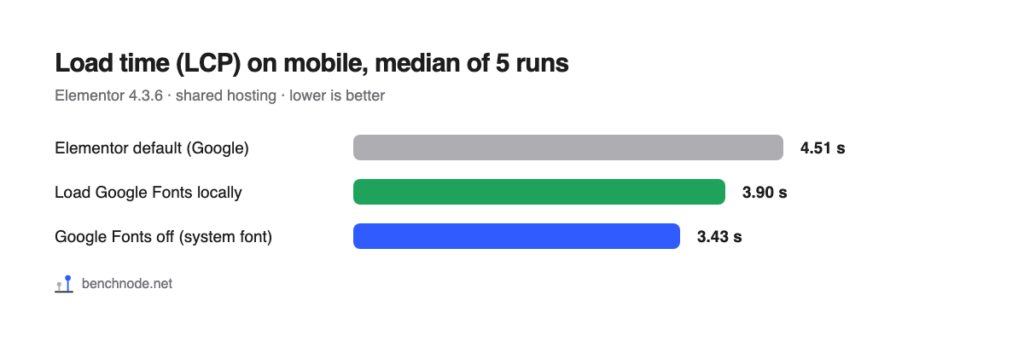
So loading fonts locally isn’t just better for privacy, it’s also faster. The browser no longer has to connect to two extra servers (fonts.googleapis.com and fonts.gstatic.com) before it gets the font.
Why it matters
When a page loads fonts straight from Google, every visitor’s browser sends its IP address to Google without being asked. In January 2022, the Munich Regional Court ruled this a GDPR violation and awarded a visitor 100 euros in damages (case 3 O 17493/20). A wave of warning letters followed in Germany.
If the fonts come from your own server, no visitor IP goes to Google when a page loads. You also don’t need consent in your cookie banner for the fonts.
How to check whether your site loads Google Fonts
- In your browser: open the page, right-click → Inspect → Network tab, then reload. Type
fonts.ginto the filter box. If anything shows up, your site loads Google Fonts. - In the source code: right-click → View page source, then search for
fonts.googleapiswith Ctrl+F (Mac: Cmd+F). - With our plugin: the free Connection Monitor has a page scan that lists every outside server a page uses.
Check several pages, not just the home page. Some plugins only load fonts where they need them, such as a slider or a form.
The fix in Elementor
These are the menu names in Elementor 4.3 with an English dashboard:
1. Load Google Fonts locally
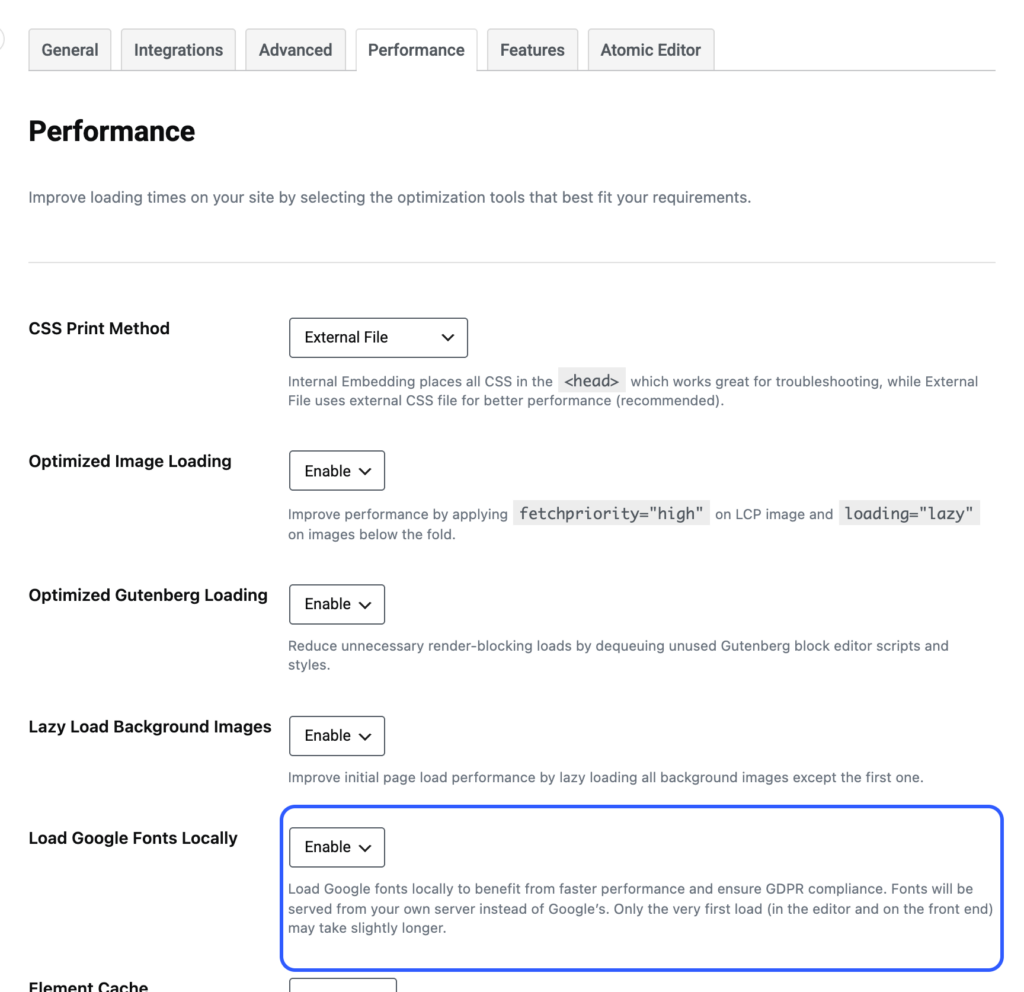
In the WordPress menu, click Elementor and open Settings under Editor on the left. On the Performance tab, set Load Google Fonts Locally to Enable.
2. Set the display mode to Swap
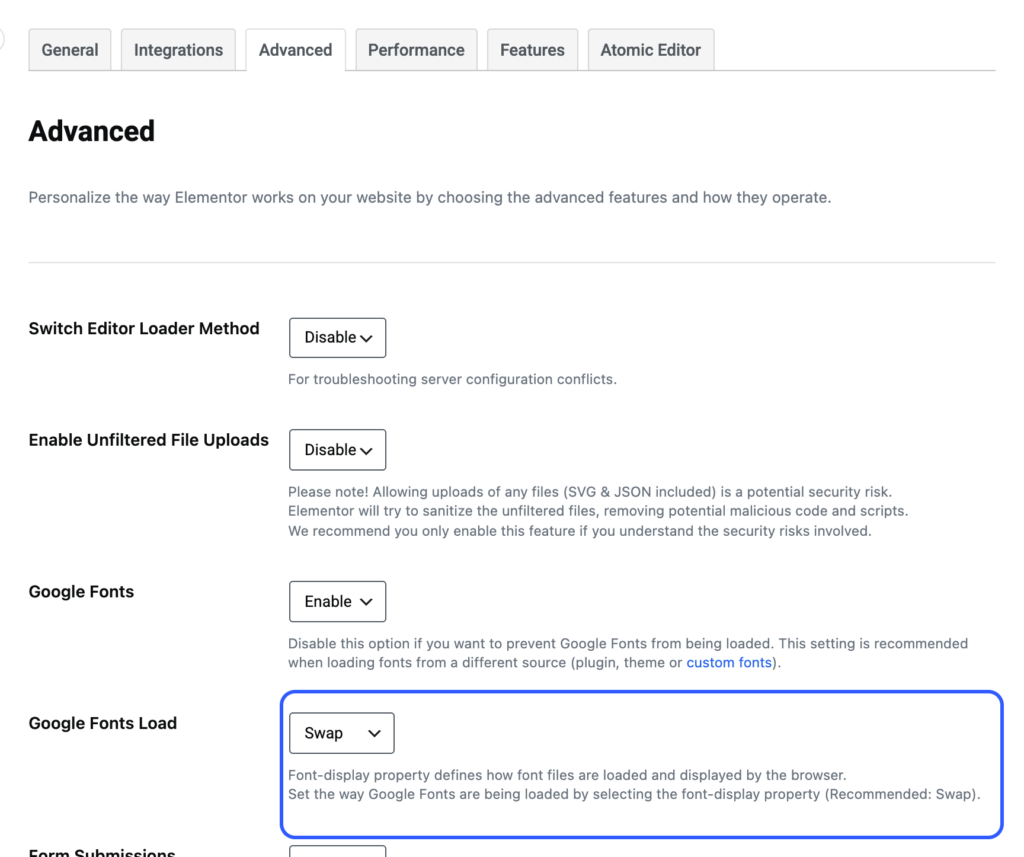
On the Advanced tab, set Google Fonts Load to Swap. The browser then shows the text right away in a fallback font and swaps it as soon as the real font has arrived. Then click Save Changes.
3. Clear the cache and check
Open Tools under Editor on the left and, on the General tab, click Clear Files & Data next to Elementor Cache. If you use a caching plugin, clear its cache too. Then use one of the three checks above to confirm nothing goes to Google anymore.

What happens in the background when you switch
On the first page load after switching, Elementor downloads the fonts from Google to your server once. Our Connection Monitor counted 227 requests from the server to Google (2 to fonts.googleapis.com, 225 to fonts.gstatic.com). It took about 18 seconds. In the end, 25 font files totaling 604 KB were on the server.
What that means for you: the very first page load after switching can take noticeably longer. Load the page yourself once before visitors do. These connections come from your server, not from your visitors, so their IP addresses don’t reach Google.
Even faster: turn Google Fonts off completely
Without web fonts, the page was fastest in our test (3.43 s instead of 3.90 s on mobile). To do that, set Google Fonts to Disable under Elementor → Editor → Settings → Advanced. The page then uses the fonts already installed on the visitor’s device, which looks slightly different from device to device.
If you want to keep your own font, there’s a middle ground. That’s what we do on Benchnode: Google Fonts are off in Elementor, and we load the Inter font ourselves as a variable font in just two files (Latin and Latin Extended, 133 KB together) instead of 25. Benchnode’s home page scores 100 in Lighthouse on mobile.
Other sources of Google Fonts
Elementor isn’t the only source. Themes, slider, form or map plugins sometimes load fonts from Google too. So always check again after switching. If you still see requests to fonts.googleapis.com, look in that plugin’s settings for an option like “disable Google Fonts” or “load locally”.
Checklist
- Performance → Load Google Fonts Locally: enabled
- Advanced → Google Fonts Load: Swap
- Elementor cache cleared (Clear Files & Data) and caching plugin cleared
- Several pages checked: no requests to
fonts.googleapis.comorfonts.gstatic.com - Privacy policy updated (Google Fonts no longer needed as a third party, unless something else still loads them)
For the technically curious: setup and raw data
- Lab: WordPress 7.1.4, PHP 8.4, Hello Elementor 3.5, Elementor 4.3.6, Elementor Pro 4.3.2, shared hosting at All-Inkl. Reference page with hero image, slider, gallery, FAQ, form and popup. No caching plugin. The Elementor kit’s default fonts are Roboto and Roboto Slab.
- Measurement: Lighthouse 13.5.0, headless Chrome, throttled mobile (Lighthouse default) and desktop, 5 runs each after one warm-up request. Before each state, the lab was reset to the same snapshot. Methodology
- States: A = Elementor default (
elementor_google_fonton,elementor_local_google_fontsoff), B = local (both on), C = off (elementor_google_fontoff). Elementor’s CSS cache was cleared after each switch. - Page weight: in state B the page weighed 829 KB (mobile), more than the 708 KB in A. Lighthouse can’t always fully capture the transfer size of fonts from other servers, so we don’t count this difference against “local”.
- Server connections recorded with Connection Monitor 1.0. The font download is triggered by Elementor and runs through the WordPress function
download_url(). - Variance: without a cache, server response time (TTFB) was 630 to 880 ms and varied regardless of state. It’s not part of the comparison.
- Raw data: messdaten.csv with all 30 runs. Note: the
fremd_requestscolumn shows 1 in B and C. That’s an internal browser request without a server, not an outside connection. The script has since been fixed. - Measured on: November 7, 2026.